
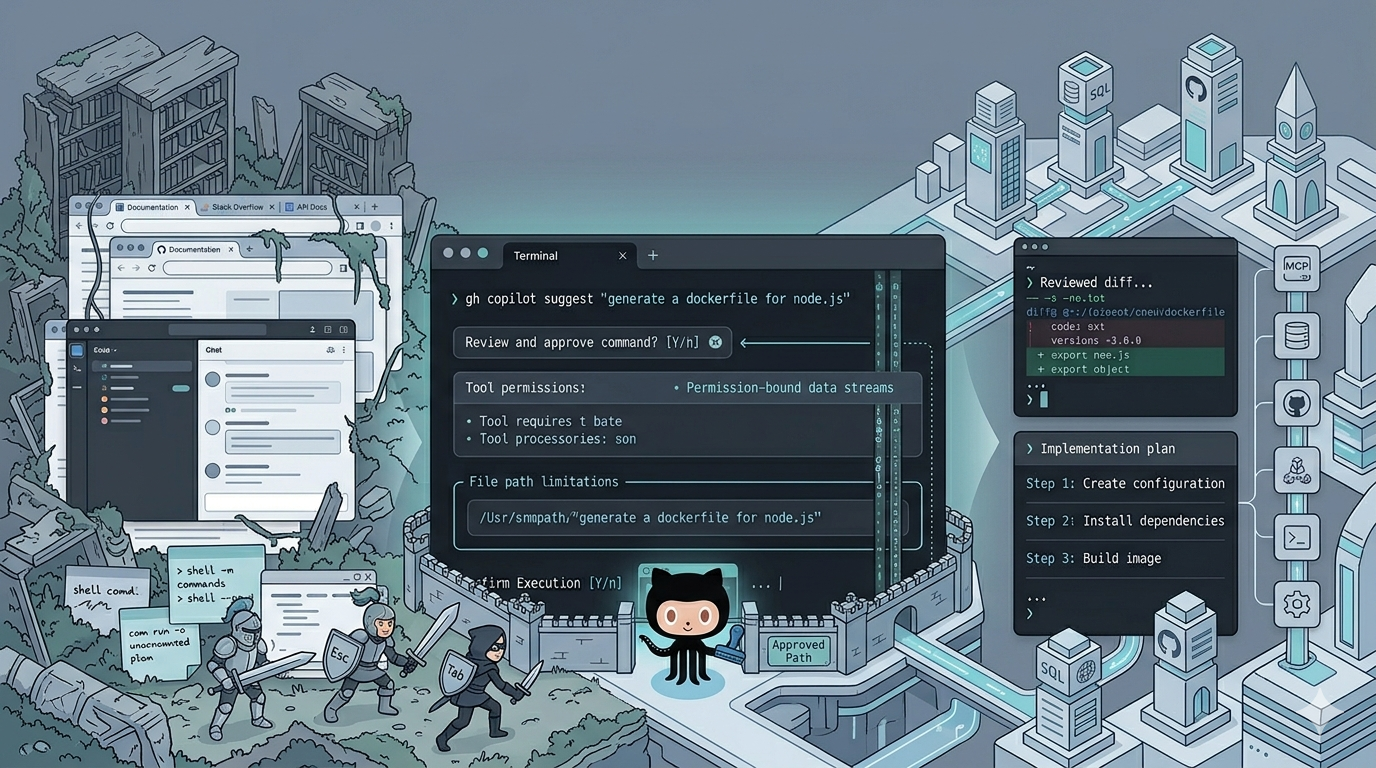
TL;DR: GitHub Copilot CLI puts an agentic Copilot experience directly in your terminal. It is now generally available, works with all Copilot plans, and is built around a trust-and-permissions model that lets you decide how much it can read, change, run, and fetch. The best rollout path is still the boring one: start with interactive use, add repo instructions early, and treat autopilot like a power tool instead of the default.
If your workday starts in a shell, context switching is one of those small taxes that adds up fast. You stop to open a browser, an IDE chat, or a docs tab just to write a command, explain an error, or sketch a script.
GitHub Copilot CLI is built to remove some of that friction. It brings Copilot into the terminal with an interactive interface, a non-interactive prompt mode, and the ability to read files, propose edits, run commands, and work through multi-step tasks inside a permission model you control. GitHub now positions it as a terminal-native coding agent rather than just a command suggester.
That distinction matters. The interesting story is not merely “AI in the terminal.” It is AI in the terminal with approvals, path limits, URL limits, and trusted-directory boundaries. Used well, Copilot CLI feels less like a magic bot and more like a fast assistant that stays inside your workflow and only crosses lines you approve.
Why Copilot CLI matters right now
Copilot CLI is not in preview anymore. GitHub announced it as generally available on February 25, 2026, and GitHub Docs now say it is available with all Copilot plans. If you receive Copilot through an organization, though, your organization still has to enable the Copilot CLI policy.
A few recent product changes also make it more relevant than the earlier “Copilot in the CLI” story many people remember. GitHub added gh copilot as a wrapper for GitHub CLI users, and GitHub explicitly deprecated the older GitHub Copilot in the CLI extension in favor of the newer agentic Copilot CLI workflow.
In short: Copilot CLI is no longer just a novelty for generating one-liners. GitHub’s own docs and changelog now frame it as a terminal-side agent that can plan, review, delegate, and automate work while still giving you explicit control over permissions.
Quickstart: install, trust, and authenticate
GitHub currently supports several install paths. If you use npm, you need Node.js 22 or later. On Windows, GitHub lists PowerShell v6 or higher as a prerequisite. Supported install methods include WinGet on Windows, Homebrew on macOS and Linux, npm on all platforms, and an install script on macOS and Linux.
Install
npm (all platforms)
npm install -g @github/copilotHomebrew (macOS/Linux)
brew install copilot-cliWinGet (Windows)
winget install GitHub.CopilotTrust the directory
The first launch flow is worth understanding before you paste it into a setup guide. When you run copilot, GitHub says the CLI will first ask whether you trust the files in the current folder. That prompt is not cosmetic: during the session, Copilot may try to read, modify, and execute files in and below that folder. You can trust the directory for just the current session, remember it for future sessions, or exit.
Authenticate
After that, if you are not already logged in, you authenticate with /login inside the interactive session or by running:
copilot loginGitHub also supports token-based authentication, but the details matter more than most quickstarts mention. Credential lookup order is:
COPILOT_GITHUB_TOKEN → GH_TOKEN → GITHUB_TOKEN → stored OAuth token → gh auth tokenFine-grained PATs with the Copilot Requests permission are supported; classic ghp_ PATs are not.
Watch for token overrides: One shell variable can quietly override the account you thought you were using. If authentication looks wrong, check your environment before you blame the CLI.
How Copilot CLI actually works
The simplest mental model is this: Copilot CLI is a conversation layer sitting on top of a permissioned toolbox. You prompt it to explain something, propose a change, review a diff, or automate a task. It may then request access to tools, files, paths, or URLs. You decide whether to allow that once, allow it for the session, or preconfigure it with flags.
By default, path permissions are not unlimited. GitHub says Copilot CLI can access the current working directory, its subdirectories, and the system temp directory unless you broaden or narrow those permissions. URL access is also gated: by default, external URLs require approval before the CLI can fetch them.
This is the difference between “AI that suggests” and “AI that acts.” Copilot CLI can absolutely act. The point is that it does so through a trust model you can inspect and tune instead of through blanket magic.
The three usage patterns that matter most
1) Interactive mode
Interactive mode is the default place to start:
copilotGitHub describes the interactive interface as the place where you can converse with Copilot, steer its work, and use slash commands. The current command reference documents commands such as /add-dir, /delegate, /allow-all, /yolo, /login, and many others. GitHub also documents /review for terminal-based code review.
This is the best default for day-to-day work because it gives you the most visibility: you can refine prompts, inspect proposed commands, and decide where the session should be more or less permissive.
2) Plan mode
For multi-step work, GitHub now emphasizes plan mode rather than jumping straight into edits. In the interactive interface, Shift + Tab cycles between standard, plan, and autopilot views according to the command reference, and the broader docs describe plan mode as the place where Copilot analyzes the request, asks clarifying questions, and builds a structured implementation plan before writing code.
That is one of the most useful behaviors to adopt early. Planning first reduces the chance that the agent misreads the task and starts changing the wrong things with confidence. For complex features, refactors, or debugging sessions, plan mode is a better starting point than “just do it.”
3) Programmatic and autopilot use
Programmatic use is what makes Copilot CLI more than an interactive toy. GitHub’s programmatic reference documents -p for non-interactive prompts and -s for clean output in scripts and pipelines.
copilot -p "Write a bash script that backs up wp-content to ./backups with a timestamp"This is great for one-shot prompts, shell aliases, and automation. But it also changes the safety model. GitHub’s command reference explicitly says --allow-all-tools is required when using the CLI programmatically, because the CLI cannot stop to ask for permission in the middle of a headless run.
Autopilot takes that further. GitHub describes it as a way to let Copilot continue through multi-step work on its own, and recommends pairing it with --max-autopilot-continues to prevent runaway loops, especially when you will not be there to intervene. GitHub’s docs also make clear that --allow-all or --yolo grants broad permissions across tools, paths, and URLs.
copilot --autopilot --yolo --max-autopilot-continues 10 -p "YOUR PROMPT HERE"That is why autopilot is best treated as a bounded tool for well-defined work, not as your everyday default. It can be excellent for CI repair, contained refactors, or repetitive cleanup. It is a poor habit when your repo is sensitive, your prompt is vague, or your permissions are too broad.
Practical workflows worth stealing
Turn intent into a command
One of the safest ways to use Copilot CLI is to have it turn intent into a command while you stay the one who runs it. That removes friction without giving it much authority.
copilot -p "Find all PHP files changed in the last 7 days and list their paths, excluding vendor/"Explain risky commands before you trust them
The same goes for explaining risky commands before you trust them. Use this whenever a command feels “probably fine” but you don’t want to learn the hard way.
copilot -p "Explain what this does and what could go wrong: find . -type f -name '*.log' -mtime +30 -delete"Draft scripts with explicit safety checks
Drafting scripts with explicit safety checks is another low-risk, high-return habit. Be explicit about what checks you want baked in—the more you specify, the less Copilot has to guess.
copilot -p "Write a bash script that creates a database backup, zips wp-content, and prints restore steps. Add safety checks and confirm paths."Plan before you implement
Planning before implementation is another workflow that pays off fast. GitHub’s own best-practices guidance recommends establishing team conventions for when to use /plan, when to use /delegate, and how to review AI-generated work.
/plan Add a WordPress REST API endpoint that returns a list of upcoming events with caching. Include permission checks and unit tests.Review your own diff
Code review is also a strong fit. GitHub documents a /review slash command that lets Copilot analyze your current changes without leaving the terminal. That makes it a good second set of eyes before you commit or open a PR.
/review Review my current branch against main. Focus on security issues, edge cases, and breaking changes.Extend file access with /add-dir
If your work spans multiple repos or directories, /add-dir lets you extend the allowed file-access list without defaulting to unrestricted path access. That is a much better habit than immediately throwing --allow-all-paths at everything.
/add-dir /Users/me/projects/wp-plugin
/add-dir /Users/me/projects/wp-theme
Parallelize with /fleet
And if a task breaks cleanly into parallel subproblems, GitHub now supports /fleet to hand pieces of the work to subagents and speed completion. That makes the CLI feel much more like an orchestration layer than a single-turn chatbot.
Add instructions early so it stops guessing
Copilot CLI gets better when it stops inferring how your repo works from scattered clues. GitHub’s current docs support several instruction-file patterns:
.github/copilot-instructions.md.github/instructions/**/*.instructions.mdfor modular instructionsAGENTS.md$HOME/.copilot/copilot-instructions.mdfor local/global instructionsCLAUDE.mdandGEMINI.mdat the repo root as alternatives in some cases
That makes repo instructions one of the highest-leverage improvements you can make after installation. Good instructions tell Copilot what commands to run for build and test, what coding standards matter, what checks are required before it considers a task done, and what areas are off-limits. GitHub’s own best-practices doc recommends exactly that kind of repository setup.
Examples of useful instructions are simple:
- Run the build and test commands before finishing.
- Follow the project’s code style and architecture rules.
- Never change production config.
- Explain breaking changes and migration steps before proposing edits.
The less your agent has to guess, the less weirdness you get back.
MCP servers and plugins: where it starts becoming infrastructure
GitHub Copilot CLI supports Model Context Protocol (MCP) servers so you can connect external tools, data sources, and services. GitHub notes that the GitHub MCP server is built in by default, so additional setup is for other MCP servers. You can add them with /mcp add or by editing the config directly.
Plugins are the other big extension point. GitHub describes plugins as installable packages that extend Copilot CLI with reusable agents, skills, hooks, and integrations. That matters because it turns Copilot CLI from a personal helper into something a team can standardize and share.
That is also the point where governance matters more, not less. The more tools and context you attach, the more valuable the system becomes—and the more carefully you should define its boundaries.
For WordPress developers: Copilot CLI pairs naturally with WP-CLI, Composer, and wp-env workflows—ask it to scaffold plugin tests, generate search-replace commands, or explain a failing CI step without leaving the terminal.
Safety checklist: set these guardrails early
1) Prefer allowlists over blanket permissions
The safest default is still to prefer allowlists over blanket permissions. GitHub’s command reference supports precise patterns such as allowing shell(git:*) while denying shell(git push), and GitHub explicitly says deny rules take precedence even when --allow-all is set.
copilot --allow-tool 'shell(git:*)' --deny-tool 'shell(git push)'2) Be careful with fully permissive options
GitHub also strongly recommends treating fully permissive options like --allow-all-tools, --allow-all, and /yolo with care. Their docs say these options should be used only in isolated environments and should not be baked into an alias that runs every time you start the CLI.
3) Tighten scope instead of widening it
That advice is worth taking literally. If you want faster workflows, tighten the scope instead of widening it blindly: restrict available tools, limit allowed paths, review proposed commands, and reset permissions when a session has gotten looser than you intended. GitHub provides /reset-allowed-tools for exactly that reason.
4) Watch your trust boundaries
Copilot can be influenced by what it reads: repo files, tool output, generated content, and web pages. That creates prompt-injection and unsafe-action risks if you run it in untrusted places.
- Only remember trusted folders.
- Avoid running Copilot in unknown repos or random extracted archives.
- Never paste secrets into prompts.
- Treat generated shell commands like code: inspect them before execution.
3 common gotchas to check first
1) It’s using the wrong account
If authentication looks wrong, check for COPILOT_GITHUB_TOKEN, GH_TOKEN, or GITHUB_TOKEN. One shell variable can quietly override the account you thought you were using.
2) Your organization’s Copilot access doesn’t apply
Org-managed access can be controlled by policy. If your Copilot entitlement comes from an organization, the Copilot CLI policy must also be enabled by an admin.
3) Programmatic mode fails silently
The CLI cannot stop to ask for permission in a headless run. If a programmatic prompt needs tool access you haven’t pre-approved, it will fail. Double-check your flags—--allow-all-tools is required for most non-trivial programmatic use.
FAQ
Is Copilot CLI basically ChatGPT in a terminal?
Not really. The important difference is that Copilot CLI is designed around your local workspace and a permissioned tool system. It can see your files, run commands, and act on your behalf—within boundaries you approve.
Do I need to use gh copilot?
No. It’s a convenience wrapper. You can install Copilot CLI directly with npm, Homebrew, WinGet, or the install script.
Is autopilot safe?
It can be safe for well-defined tasks with restricted permissions. It becomes risky when paired with broad permissions and vague instructions. Pair it with --max-autopilot-continues to prevent runaway loops.
Which Copilot plans support this?
All of them. Copilot CLI is available with all Copilot plans as of the February 25, 2026 GA announcement.
Final take: start small, then standardize
The smartest way to adopt Copilot CLI is not to give it full control on day one. It is to start with the low-risk, high-return work: generating commands, explaining errors, reviewing diffs, and building plans before implementation. Once that feels reliable, add repo instructions. Once those instructions are working, test more autonomous workflows with bounded permissions.
A sensible rollout path looks like this:
- Install and authenticate Copilot CLI.
- Use interactive mode for a week.
- Add repository instructions so it follows your conventions.
- Use
/review,/plan, and/add-dirbefore you reach for autopilot. - Only then experiment with autopilot, MCP servers, and plugins under controlled permissions.
Used well, GitHub Copilot CLI is less “AI magic” and more “a fast terminal assistant with a short leash.” That’s exactly how it should be.
What’s your stack? If you tell me your OS and what you build most—WordPress plugins, web apps, or DevOps pipelines—I can tailor a starter set of prompts around that workflow.

Leave a Reply